


Date: 4 August 2026
Table of Contents
ToggleWhy Won’t My MacBook Turn On After a macOS Update?
You click “Update Now,” leave your MacBook to download the latest operating system, and expect to come back to a freshly updated machine. Instead, you find a blank black screen, an endless restart, or a machine that completely unable to turn on.
Updating your operating system feels like a purely software based process, so when your computer hang at mid update, it is easy to assume the update itself broke your Mac.
In reality, a major update acts like an intense physical stress test for your Mac.
Understanding the three main reasons why a Mac fails during or right after a software update, and knowing how to perform a safe system recovery can help you get your Mac running again without losing your date and files.
Pre-Existing Logic Board & Hardware Failures
The most common reason a MacBook got issue during a software update has nothing to do with software bugs, mostly it comes down to underlying hardware stability.
During a major macOS upgrade, the system will do a low level reboot sequence that runs a full hardware diagnostics test. It tests power delivery lines, thermal sensors, power management integrated circuits, and NAND storage integrity.
If your logic board already had a “half-working” component (such as a capacitor degraded by previous liquid exposure or a hairline solder fracture), the electrical stress and diagnostic check will highlight the error.
The result: To protect the CPU, memory, and data from permanent thermal or electrical damage, macOS triggers a system lock down and stop the boot cycle.
Insufficient Storage (40–50GB Rule)
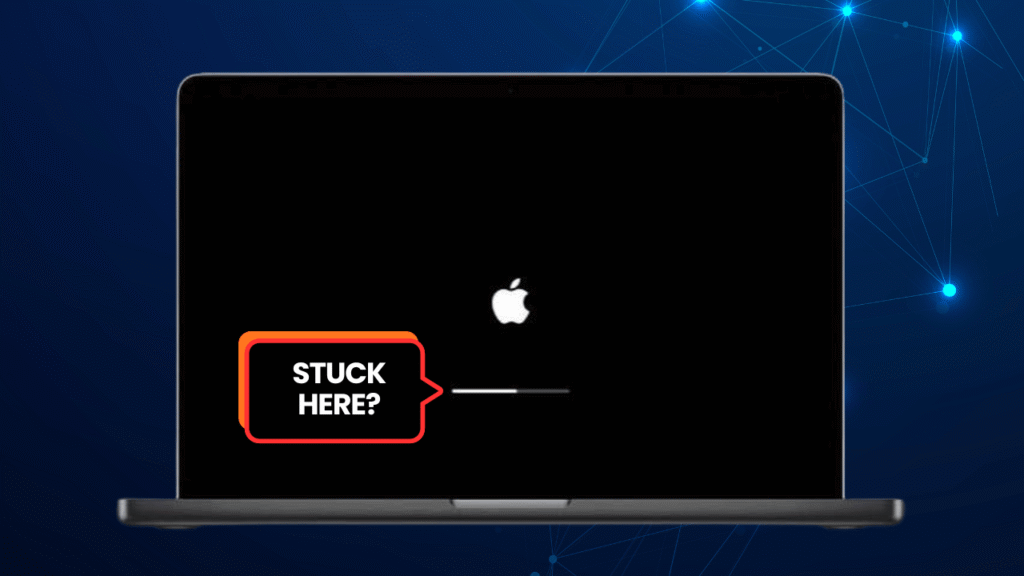
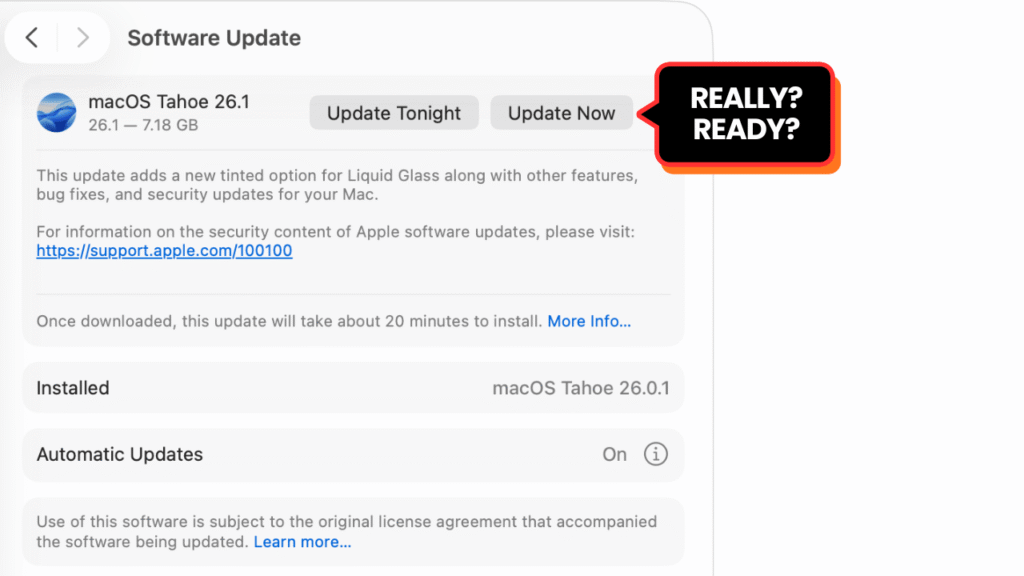
Major system releases, such as macOS Tahoe, require a large amount of temporary working buffer storage space to download, uncompress, and install system files over your existing operating system.
If your drive was already nearly full before you press “Update,” the installer will start unpacking files until it hits an error. Once local storage jam up, the system cannot create essential system swap files, corrupting the boot directory and leaving your Mac unable to turn back on.
How to Check Your Free Storage Space (Before Updating)
Click the Apple Logo () in the top-left corner of your screen.
Select About This Mac.
Scroll down to the bottom of the window to view your exact Available Storage. Always verify you have at least 40–50GB free before running a major update.
Sudden Power Cut Off or Network Interruptions
A major system update rewrites low level firmware code on your Mac security chips and internal storage on the logic board.
If your Mac experiences a sudden disruption:
Unplugged Battery Death: The battery dies halfway through flashing system firmware.
Sudden Wi-Fi / Internet Drop: The installer drops crucial security verification stops while updating the system bootloader.
These sudden interruptions leave your operating system in a “half written” state, causing your Mac to hang on a black screen or shut down.
DIY Solution: How to Reinstall macOS via Recovery Mode (M Series Apple Silicon Mac)
If your M series MacBook (M1, M2, M3, M4…M5) is stuck on a black screen or failing to boot after an update, you can try to reload the operating system using the built in Recovery Mode.
Recovery Guide:
Force Shut Down: Press and hold the Power Button / Touch ID Button for about 10 seconds until the screen goes completely dark.
Boot to Recovery: Press and hold down the Power Button again continuously for about 10 seconds.
Release Button: Keep holding until you see the message “Loading startup options” appear on the screen.
Initiate Reinstall: Click Options, select Continue, and choose Reinstall macOS. This reloads clean system files over your existing operating system without wiping your personal documents.
What If Recovery Mode Freezes or Fails?
If holding the power button fails to load startup options, or if the reinstall process throws an error code halfway through, your mac has an existing hardware or logic board power issue.
Don’t panic or force repeated attempts that could stress the storage further. Bring your Mac straight to our team at Orange Fix Subang SS15:
In House Soldering: We can test the individual power lines and chipsets on your logic board to check for physical hardware faults.
Data Preservation: We prioritize repairing your original motherboard so you can boot up safely and access your critical files.
Frequently Asked Questions
Will reinstalling macOS through Recovery Mode erase my photos and personal documents?
Standard OS reinstallation through Recovery Mode only overwrites corrupted system files and operating system code. It leaves your user account, desktop files, photos, and installed apps safe.
Why did my MacBook update fail even though I had 20GB of free space?
Latest macOS updates require significant temporary storage space to uncompress installation packages. While the initial download file might only be 12GB to 15GB, the system requires 40GB to 50GB of free temporary space to unpack the installer, create system swap files, and back up legacy boot configurations.
What should I do if my Mac stays completely dead with no light or sound when holding the power button?
If holding the power button for 10 seconds but no fan spin, display backlight, or chime, it could be your logic board main power management rail or charging circuit has suffered a hardware failure. Bring your machine to our Subang SS15 shop for an immediate checking.

Topics That Might Interest You
Worried about your photos, files, and data privacy during a repair? Read our strict security guide on macbook repair data privacy malaysia to see how our Zero Password process protects your personal data.
Spilled liquid on your Mac weeks ago and now it’s acting strangely? Learn why delayed corrosion causes sudden crashes, restarts, and port failures in macbook water damage delayed symptoms corrosion.

About The Author
This article is written with input from Kevin, who has 18 years of hands on experience in MacBook repair, logic board inspection and Apple device care. Kevin and the OrangeFix team are also daily Apple product users, so every guide is written from real repair experience and practical user understanding.
Kevin has shared his repair knowledge through a CityPlus FM radio interview and has also been featured twice in The Star for gadget care, water damage advice and digital decluttering tips.
OrangeFix is an independent repair centre in SS15, Subang Jaya.