Table of Contents
ToggleSlow iMac? Check This Before Adding RAM.
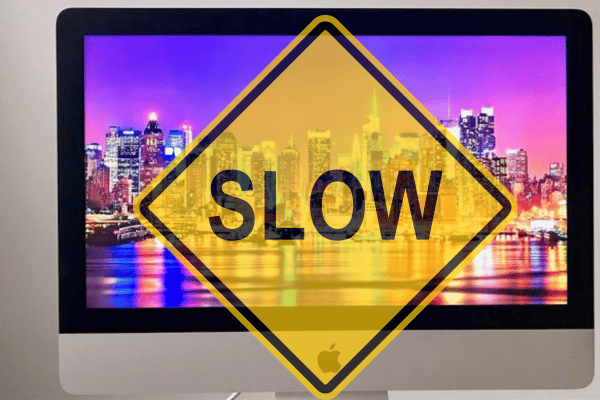
Bought a used iMac and it feels slow? Many people will quickly think about adding more RAM. It sounds logical, especially when the iMac is old and the apps feel heavy.
But for many Intel iMac models, the bigger problem is not RAM. The first thing to check is storage.
If the iMac is still using a hard disk or Fusion Drive, adding 32GB, 64GB or even 128GB RAM may still not make the iMac feel properly fast. The machine can still feel slow when opening apps, starting macOS, loading files, browsing, or switching between tasks.
At OrangeFix, we always advise users to check the storage type first before spending money on upgrades. Proper checks help you avoid paying for the wrong upgrade.
Why A Used iMac Can Still Feel Slow After Adding RAM?
RAM gives your iMac more working space. Storage affects how fast the iMac can read and write data.
A simple way to understand it:
- RAM is like a bigger table.
- Storage is like the person bringing food to the table.
If the person bringing food is slow, a bigger table will not make lunch arrive faster.
That is why an iMac with 32GB RAM can still feel slow if it is running on an old hard disk. The system is still waiting for the drive to load macOS, open apps, save files, and move data around.
More RAM can help when you open many apps, many browser tabs, or large creative files. But if the storage is the main bottleneck, SSD upgrade usually gives a more obvious daily speed improvement.
Check The Storage Type First
Before deciding on any upgrade, check what storage is inside the iMac.
For macOS Ventura version 13 or newer: Apple Logo -> System Settings -> General -> Storage
For older macOS versions: Apple Logo -> About This Mac -> Storage
You may see words such as HDD, SATA Disk, hard disk, Fusion Drive, flash storage, or SSD.
If you want a deeper view, open System Information and check under Storage, SATA, or NVMExpress.
This step is important because many used iMac units look good from the outside, but still use old storage inside. The screen can look beautiful, the body can look clean, but the internal drive may be the reason the iMac feels slow.
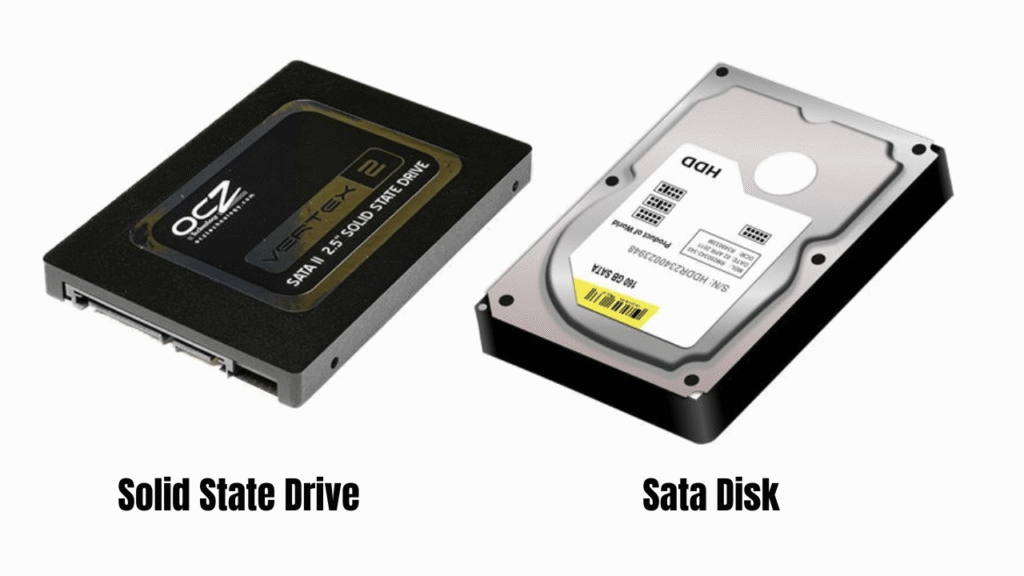
Hard Disk Vs SSD Speed In Simple Terms
A traditional hard disk has moving parts inside. It needs to spin and read data from a physical platter. An SSD has no moving spinning disk. It stores data using flash memory, so it can respond much faster.
Simple speed comparison:
Sata Hard disk, usually around 50MB to 120MB per second.
Basic 2.5 inch SSD (Solid State Drive), usually around 200MB to 550MB per second.
That difference is easy to feel in daily use:
- macOS starts faster.
- Apps open quicker.
- Files load smoother.
- Photos and documents respond better.
- Beachball waiting time can reduce.
- The iMac feels less tired.
This is why many users feel a bigger improvement from SSD upgrade compared to adding more RAM only.
Why Fusion Drive Can Still Feel Slow?
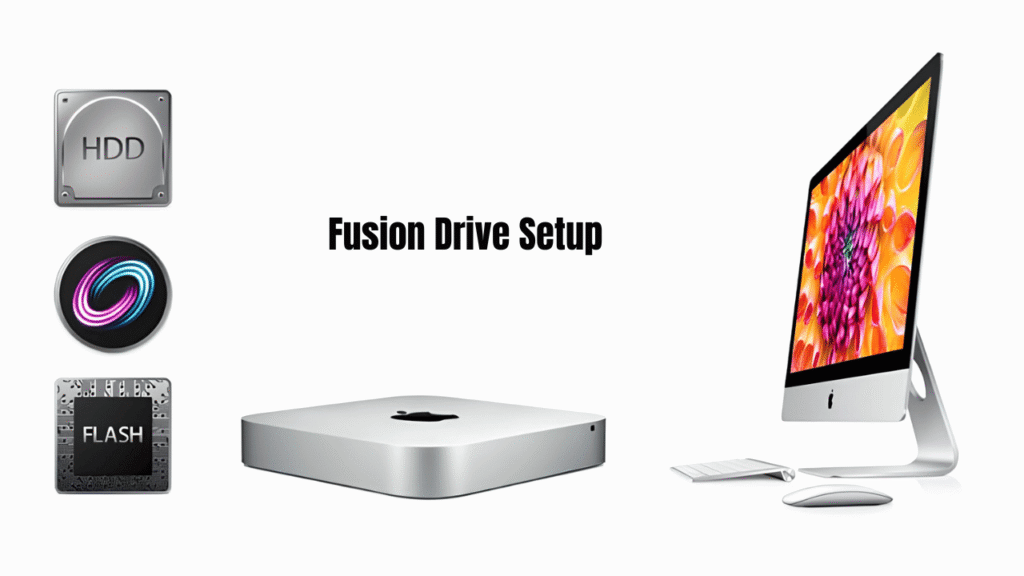
Fusion Drive sounds better than normal hard disk because it combines a small amount of flash storage with a larger hard disk.
In real life, performance depends on how the system uses both parts. When the fast flash portion is not enough, or when the hard disk part becomes old, the iMac can still feel slow. Some Fusion Drive iMac models can feel good at first, then become slower over time as the drive ages or gets heavily filled.
For used iMac buyers, this is important.
- Do not assume Fusion Drive means fast.
- Also do not assume more RAM will solve everything.
Check the storage health and type before upgrading.
Why Newer MacBook Models Feel Fast Even With 8GB Memory?
Many newer MacBook Air, MacBook Pro and iMac models feel smooth even when they have modest memory. One major reason is SSD speed.
Fast storage helps the computer load apps, move files, and handle system tasks quickly. Even when the memory is not huge, a fast SSD can make the whole machine feel more responsive for normal daily use.
This is why an older iMac with a hard disk can feel slower than a newer MacBook with only 8GB memory. The older iMac may have more RAM, but the storage is holding it back.
The newer Mac may have less memory, but the SSD is much faster. For normal users, the feeling is simple. Fast storage makes the computer feel alive. Slow storage makes the computer feel stuck.
What Is TBW In SSD?
TBW means Terabytes Written. Easy explanation: TBW is like the mileage rating of an SSD.
A higher TBW means the SSD is designed to handle more data writing over its lifetime. Usually, bigger SSD capacity has higher TBW because there are more memory cells inside to share the workload.
For example, a 1TB SSD from the same series will usually have better endurance than a 250GB SSD from the same series. This does not mean smaller SSDs are bad. It means capacity should match usage.
A light office user may not need a very large SSD. Designer, photographer, student with many projects, or company user with many files should consider a better capacity.
Choosing the right SSD is not only about storage size. It is also about performance, endurance, budget, and how long you plan to keep the iMac.
Why SSD Prices Jumped In 2025 And 2026?
One big reason is AI and data centre demand. Large cloud companies and AI data centres need huge amounts of storage. When enterprise SSD demand becomes very strong, manufacturers may prioritise higher demand and higher value products.
Brands and manufacturers that many people can relate to include Samsung, SK hynix, Micron, Kioxia, and Western Digital.
When supply becomes tight, consumer SSD prices can also move up. Other factors can also affect pricing:
- Currency movement.
- Factory allocation.
- NAND Flash supply.
- Enterprise storage demand.
- Transport and stock holding cost.
- Warranty and replacement risk.
This is why SSD upgrade pricing may change from time to time. A price from a few months ago may not match todays parts cost.
At OrangeFix, SSD upgrade price depends on current parts cost, capacity, quality, installation work, testing, and warranty coverage.
Why Intel iMac 2012 To 2019 Users Should Pay Attention?
Intel iMac models from 2012 to 2019 are still interesting machines.
- 21.5 inch and 27 inch screens still look good.
- Speakers are still enjoyable.
- Cooling design is still useful.
- Body still feels premium.
- Many units are still suitable for office work, study, browsing, music, admin, light design, photo viewing, and family use.
The problem is that many of these iMacs are slowed down by old storage, weak hard disks, or Fusion Drive issues.
With the right hardware and the right configuration, some Intel iMacs can still serve for many more years.
For certain users, software support options may also be considered carefully, but this depends on model, stability, security needs, and user expectations. It should not be done blindly.
- Hardware health must come first.
- Storage condition matters.
- Cooling condition matters.
Battery is not the issue here because it is a desktop Mac, but dust, fan condition, thermal paste, screen removal risk, and internal drive health should be checked properly.
Frequently Asked Questions:
Should I upgrade to 32GB RAM or SSD first?
For most slow used iMac cases, check storage first. If it is using hard disk or Fusion Drive, SSD upgrade is usually the better first step. RAM can be considered after that based on your usage.
What SSD capacity should I choose for iMac?
It depends on your files and usage. Light users may be fine with smaller capacity like 250GB. Users with photos, videos, design files, company documents, or school projects should consider bigger capacity like 1TB for better space and better endurance.
Is an Intel iMac from 2012 to 2019 still worth upgrading?
Many units are still worth checking, especially if the screen, cooling system, and main hardware are still in good condition. The right SSD and proper setup can make some Intel iMacs useful for many more years.

About The Author
This article is written with input from Kevin, who has 18 years of hands on experience in MacBook repair, logic board inspection and Apple device care. Kevin and the OrangeFix team are also daily Apple product users, so every guide is written from real repair experience and practical user understanding.
Kevin has shared his repair knowledge through a CityPlus FM radio interview and has also been featured twice in The Star for gadget care, water damage advice and digital decluttering tips.
OrangeFix is an independent repair centre in SS15, Subang Jaya, and is not affiliated with Apple.