


Table of Contents
ToggleHow To Create Standard User On Mac?
Sending your MacBook or iMac for repair can feel a bit awkward.
- The technician needs to test the Mac properly.
- You may not want to share your main login password.
- Both sides are correct.
A technician needs to check keyboard, trackpad, speaker, camera, WiFi, charging, sleep wake, performance and other functions before and after repair.
At the same time, your main admin account may contain your Desktop files, Documents, Pictures, Videos, browser history and personal apps.
So what is the better way? Create a standard user account on your Mac before sending it for repair. Simple, clean, less stress.
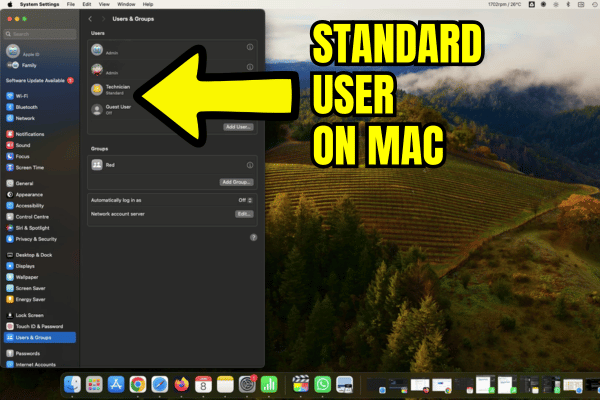
What Is A Standard User On Mac?
A standard user is a normal login account on macOS. It can be used to open the Mac, test basic functions and run normal apps.
But it does not have admin control. That means a standard user cannot freely change important system settings, install certain software, remove other users, or make deeper changes without an administrator password.
For repair testing, this is very useful. The technician can log in and test the Mac without needing your main personal password.
Why This Is Useful Before Repair?
A standard user account helps protect your privacy.
The technician can test the Mac using a clean account.
Your main admin account stays separate.
Your personal Desktop, Documents, Pictures, Videos and other private folders normally stay inside your own user account.
That means the technician does not need to open your personal account just to test whether the Mac is working properly.
This is especially helpful if you use the Mac for company files, school projects, client documents, family photos or personal videos.
Not everything needs to be shared just because the Mac needs repair.
Standard User Cannot Access Your Main Admin Data
In normal macOS use, a standard user cannot simply open, edit, modify or copy files from your main admin user account.
Admin user folder is separate. Desktop, Documents, pictures stay under your own login. However, one small reminder. Do not put private files inside the Shared folder or Public folder if you do not want other users on the same Mac to see them.
Keep important personal files inside your own account folders.
Why You Should Create This Account Before Something Goes Wrong?
Many MacBook problems happen suddenly. One day the MacBook works. Next day cannot turn on. By the time the Mac cannot power on, you cannot create a standard user anymore.
That is why it is better to prepare this account early, while the Mac is still working. Think of it like keeping an umbrella before rainy day. You may not need it today. But when you need it, you will be glad it is already there.
How To Create A Standard User On macOS?
Follow these steps on newer macOS versions.
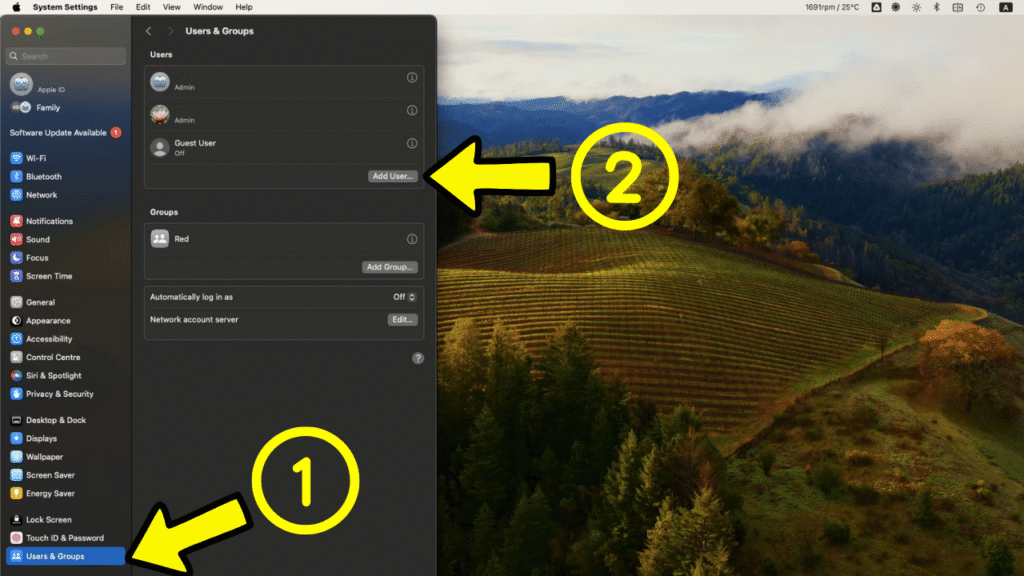
Go to Apple menu. -> Open System Settings. -> Click Users & Groups. -> Add User or Add Account.
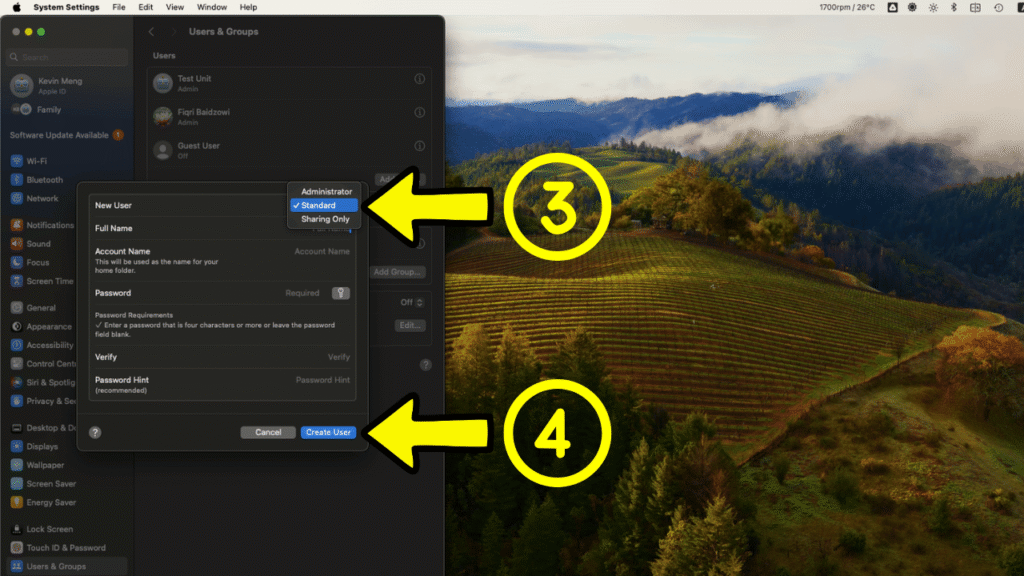
Enter your admin password if macOS asks for it. Choose Standard as the new user type. Create a simple name such as Test User or Repair Test.
Set a password that you are comfortable sharing during repair. Click Create User. After that, log out from your main account and log in to the new standard user once to make sure it works.
Admin User Still Belongs To The Owner
Usually, the device owner keeps the admin user account. The owner also usually controls the Apple Account, Find My and Activation Lock status.
This is important. Standard repair test account does not replace ownership. It is only created so the Mac can be tested without exposing the owner main login.
If Find My, Activation Lock, Apple Account sign out or major system reset is needed, the rightful owner still needs to handle it.
Should You Create This For MacBook And iMac?
Yes, it is useful for both MacBook and iMac users. If your Mac is used for work, study or business, this is even more important.
A simple standard user account can make future repair smoother.
- The technician can test faster.
- You do not need to share your personal login.
- Your private files stay better separated.
Small preparation, big peace of mind.
Frequently Asked Questions:
Should I give my admin password to a repair shop?
Only give admin access when it is truly needed and clearly explained. For normal testing, a standard user account is usually safer and more comfortable.
Can I create a standard user after my MacBook cannot turn on?
No. If the MacBook cannot turn on, you cannot create a new user account at that stage. That is why it is better to prepare one earlier.
What name should I use for the standard user?
You can use a simple name such as Test User, Repair Test or Guest Test. Avoid using your personal name if you prefer more privacy.
Can I delete the standard user after repair?
Yes. After repair is completed and everything has been tested, you can delete the standard user account from Users & Groups if you no longer need it.
Is a standard user the same as Guest User?
No. A standard user is a normal account with its own password and settings. Guest User is different and may not be suitable for proper repair testing.
Can OrangeFix test my Mac with a standard user account?
Yes. A standard user account is helpful for OrangeFix to test the Mac before and after repair without asking for your main admin login password.
Does this remove the need for backup?
No. Always back up your important data. A standard user helps with privacy during testing, but it does not replace proper backup.

About The Author
This article is written with input from Kevin, who has 18 years of hands on experience in MacBook repair, logic board inspection and Apple device care. Kevin and the OrangeFix team are also daily Apple product users, so every guide is written from real repair experience and practical user understanding.
Kevin has shared his repair knowledge through a CityPlus FM radio interview and has also been featured twice in The Star for gadget care, water damage advice and digital decluttering tips.
OrangeFix is an independent repair centre in SS15, Subang Jaya, and is not affiliated with Apple.